# How to Make a Photo Collage on iPhone (Free)

> Turn a handful of photos into one good-looking collage on your iPhone, free. Backgrounds, frames, stickers, text, and how to save it.

A collage is one of those things that looks like it needs a real design app, and then you realize your phone does it better. You pick a few photos, drop them on a canvas, dress them up with a frame and a bit of handwriting, and you've got something worth posting. Here's how to make a good one on your iPhone, free, with nothing uploaded to a server.

<figure class="post-figure-float"><img src="/assets/blog/collage-hero.png" alt="A finished photo collage in Jodu: a framed cat photo on a pink gingham background with stickers, a postage stamp, and handwritten text."></figure>

> **TL;DR** — Open [Jodu](https://apps.apple.com/app/jodu-app/id6759936736) and start a collage. Tap the size chip (or **Ratio**) to pick a shape, tap **BG** for a background, add a frame and stickers from **Sticker**, drop in your photo, add a line of **Text**, then save it straight to your camera roll with **Save to Photos**. Nothing uploads.

## What you'll need

Nothing except your photos and an iPhone. The whole thing runs on-device, so there's no upload and no account. A few photos that go together is all you need to start.

We'll use [Jodu](https://apps.apple.com/app/jodu-app/id6759936736), a free collage app, because it does both kinds of collage in one place: the tidy grid kind and the loose, layered, scrapbook kind. Most apps make you pick one.

## The two kinds of photo collage

Before the steps, it helps to know which look you're after, because they're built a little differently:

- **A grid collage** is the clean one. Equal panels, photos tucked into slots, everything lined up. Great for a recap or a tidy set of four. In Jodu you get these from the **Layout** button.
- **A free-form collage** is the loose one. A photo in a frame, sitting on a paper background, with stickers and handwriting layered around it. This is the mood-board, scrapbook, junk-journal look, and it's the one we'll build below.

You can mix the two freely. Here's the whole flow, start to saved.

## How to make a collage on your iPhone

<div class="steps">

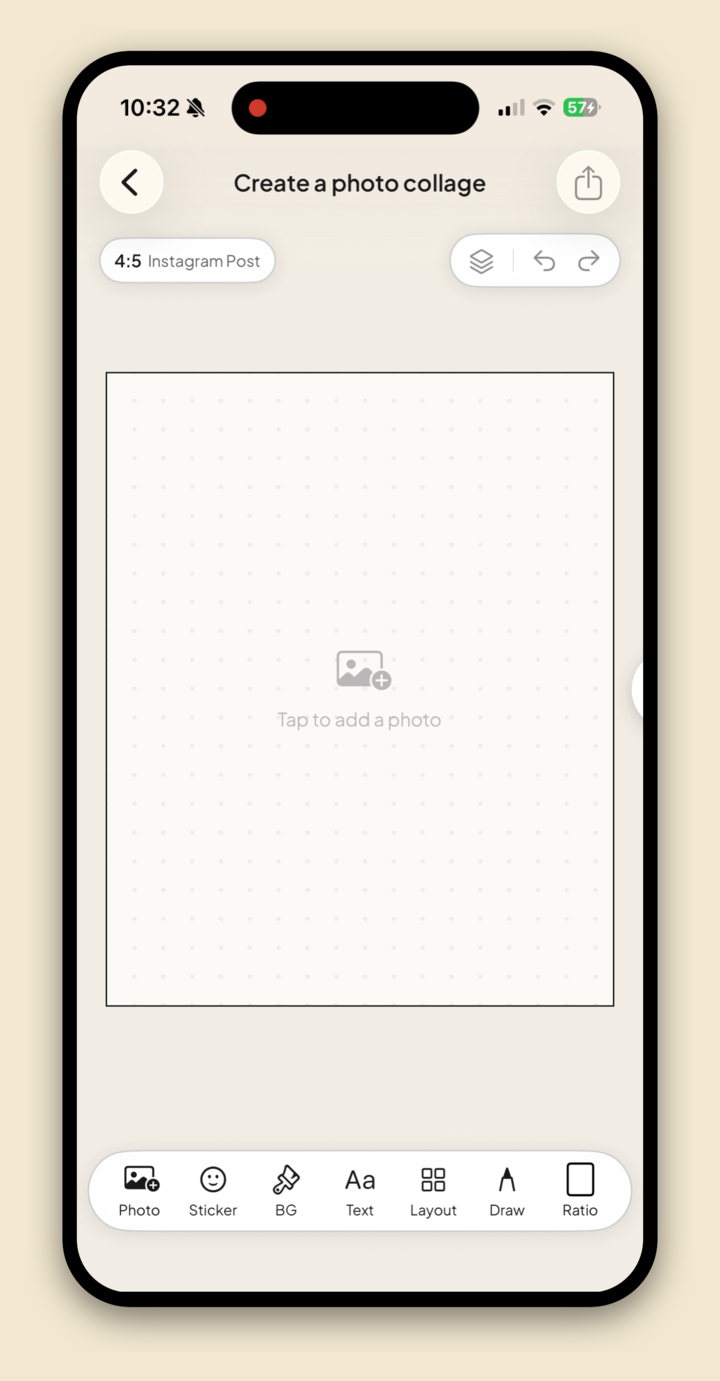
<div class="step"><div class="step-num">1</div><div class="step-text"><p><strong>Start a collage and pick the shape.</strong> Open Jodu and start a new collage. You get a blank canvas with the toolbar along the bottom. Tap the size chip at the top left, or <strong>Ratio</strong> in the toolbar, to choose a shape: <strong>Square (1:1)</strong>, <strong>Portrait (4:5)</strong> for the Instagram feed, or <strong>Story (9:16)</strong>. You can change it any time.</p></div><figure class="step-media"><img src="/assets/blog/collage-1-start.png" alt="A blank 4:5 collage canvas in Jodu with the Photo, Sticker, BG, Text, Layout, Draw and Ratio toolbar."></figure></div>

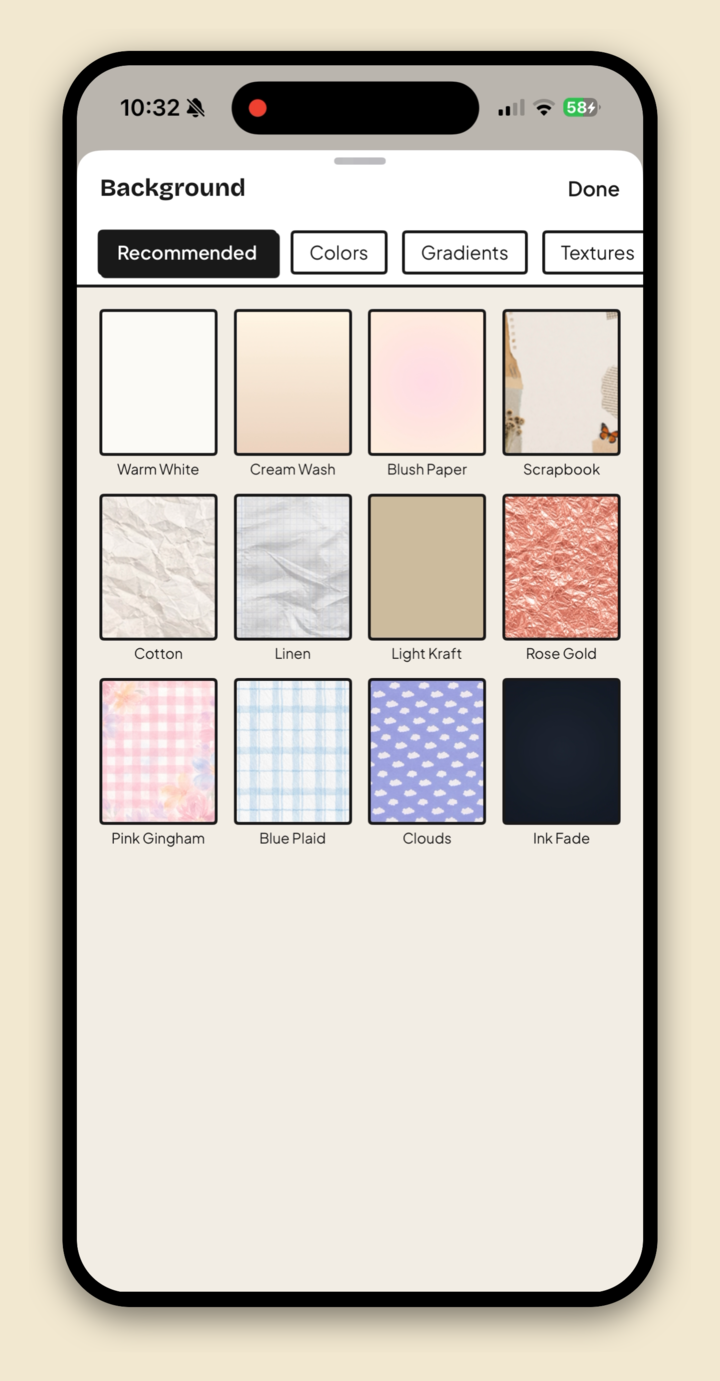
<div class="step"><div class="step-num">2</div><div class="step-text"><p><strong>Set a background.</strong> Tap <strong>BG</strong>. This is the part that makes a collage look designed instead of dropped. There are clean <strong>Colors</strong>, soft <strong>Gradients</strong>, and paper <strong>Textures</strong> like <em>Scrapbook</em>, <em>Linen</em>, <em>Kraft</em>, and <em>Cotton</em>, plus patterns like gingham and plaid. Pick one and tap Done.</p></div><figure class="step-media"><img src="/assets/blog/collage-2-background.png" alt="Jodu's Background picker with Recommended, Colors, Gradients and Textures tabs, showing paper and pattern swatches."></figure></div>

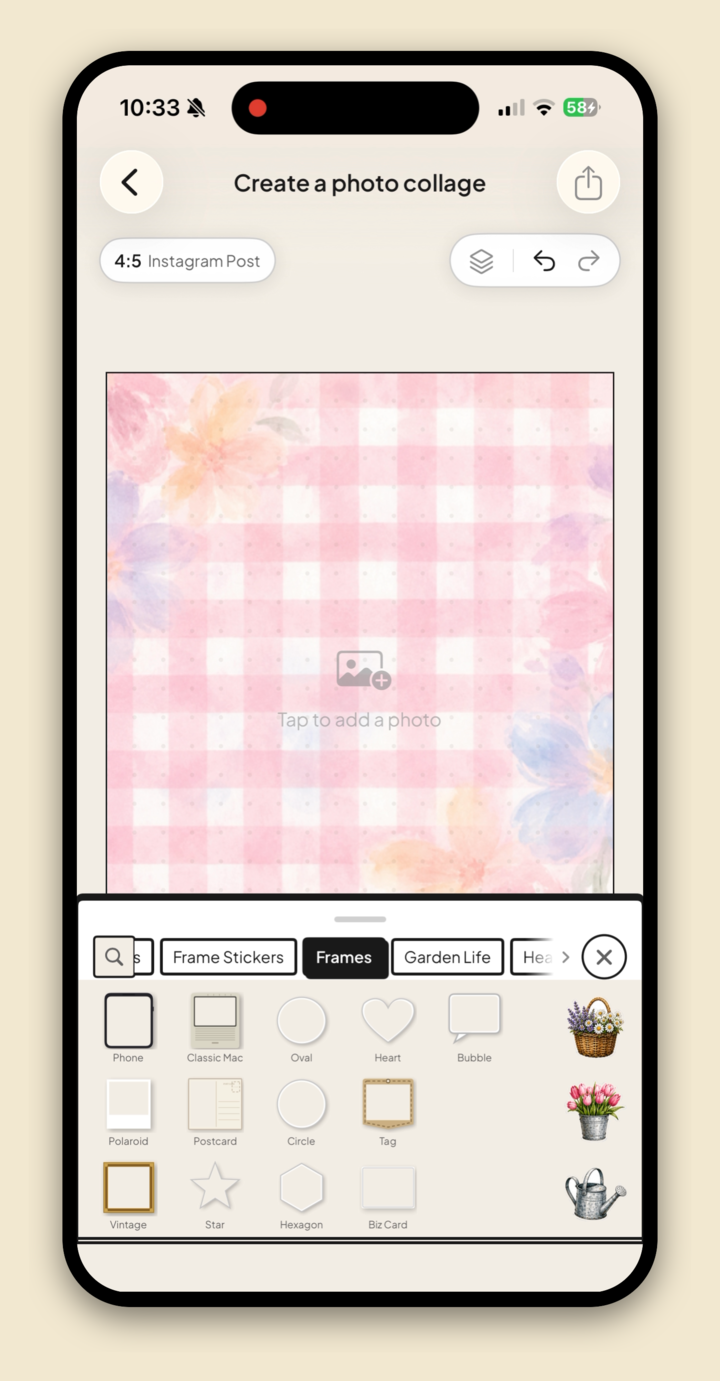
<div class="step"><div class="step-num">3</div><div class="step-text"><p><strong>Add a frame.</strong> Tap <strong>Sticker</strong> and open the <strong>Frames</strong> tab for a Polaroid, postcard, phone, or classic-Mac frame to drop your photo into. The same panel has hearts, washi tape, letters, and more, so this is where the page starts to feel like a real scrapbook.</p></div><figure class="step-media"><img src="/assets/blog/collage-3-stickers.png" alt="Jodu's sticker panel open to the Frames tab over a gingham background, showing Polaroid, postcard and other frames."></figure></div>

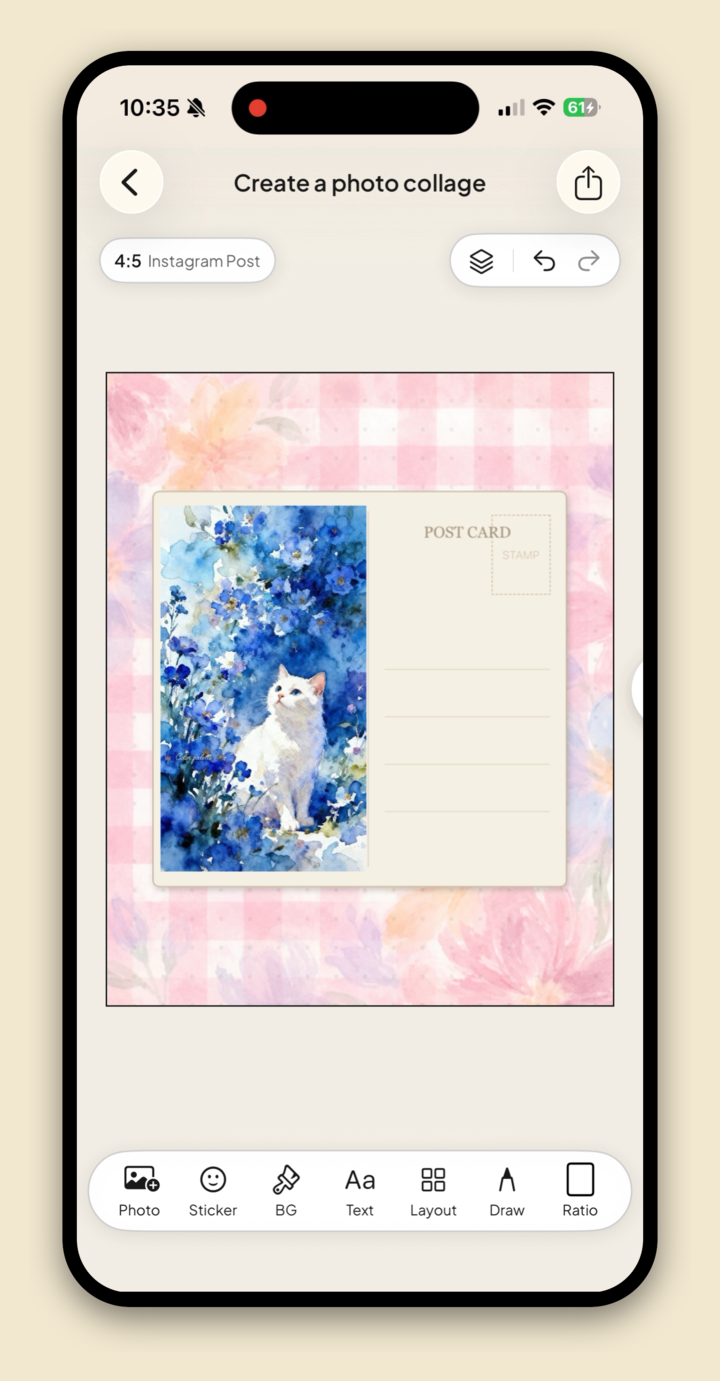
<div class="step"><div class="step-num">4</div><div class="step-text"><p><strong>Drop in your photo.</strong> Tap <strong>Tap to add a photo</strong> on the canvas (or the <strong>Photo</strong> button) and pick a shot from your library. It lands inside the frame, and you can pinch to resize, drag to reposition, and twist with two fingers to angle it just so.</p></div><figure class="step-media"><img src="/assets/blog/collage-4-photo.png" alt="A cat photo placed inside a postcard frame on a pink gingham collage background in Jodu."></figure></div>

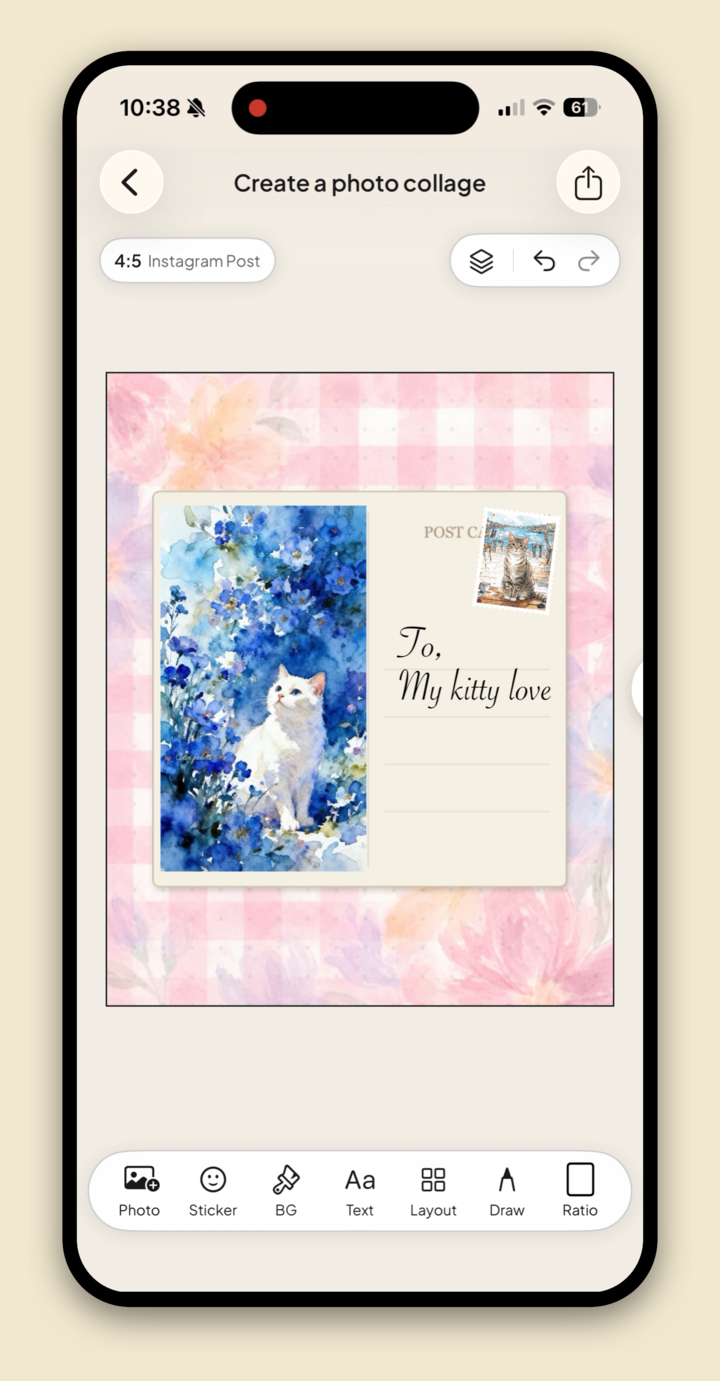
<div class="step"><div class="step-num">5</div><div class="step-text"><p><strong>Add a few words.</strong> Tap <strong>Text</strong> and type a caption, a date, or a little note. The fonts run from clean sans-serifs to a handwritten script, so a single line like a postcard greeting reads like real handwriting on the page.</p></div><figure class="step-media"><img src="/assets/blog/collage-5-text.png" alt="The postcard collage with handwritten script text reading 'To, My kitty love' added next to the framed photo."></figure></div>

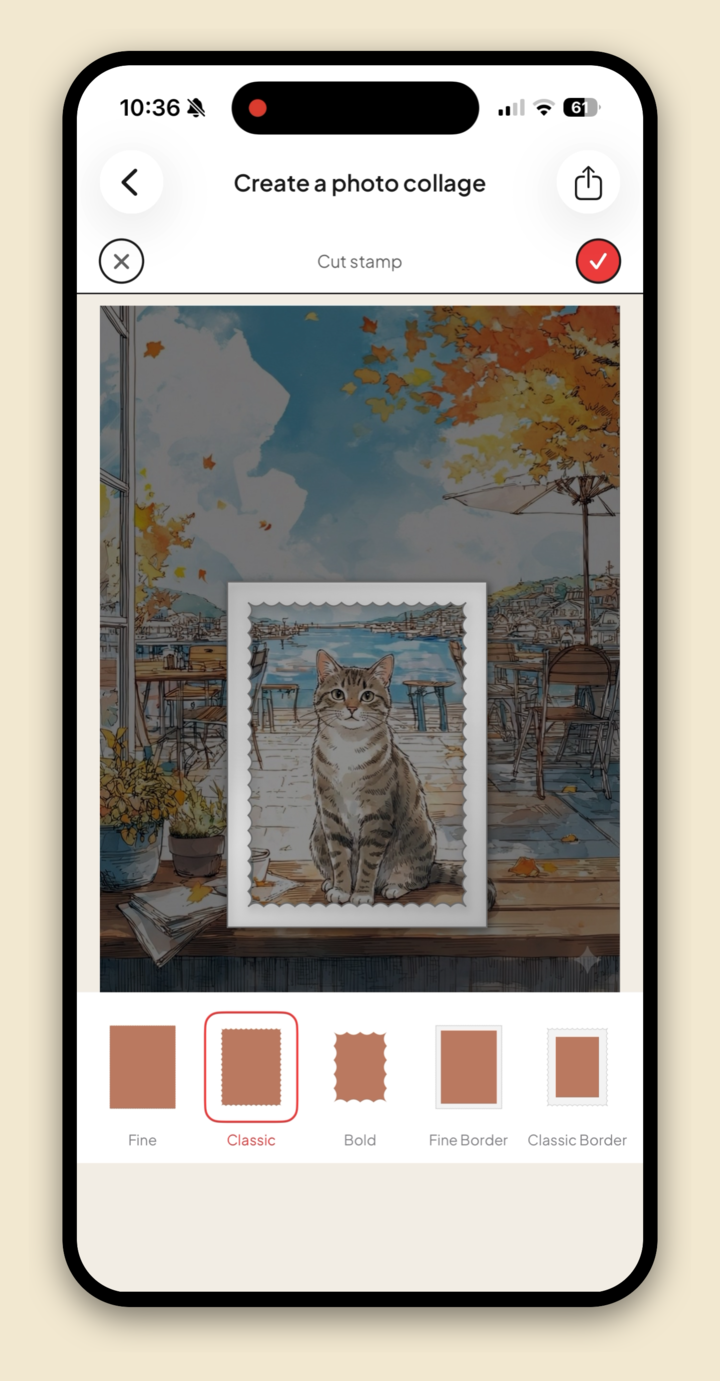
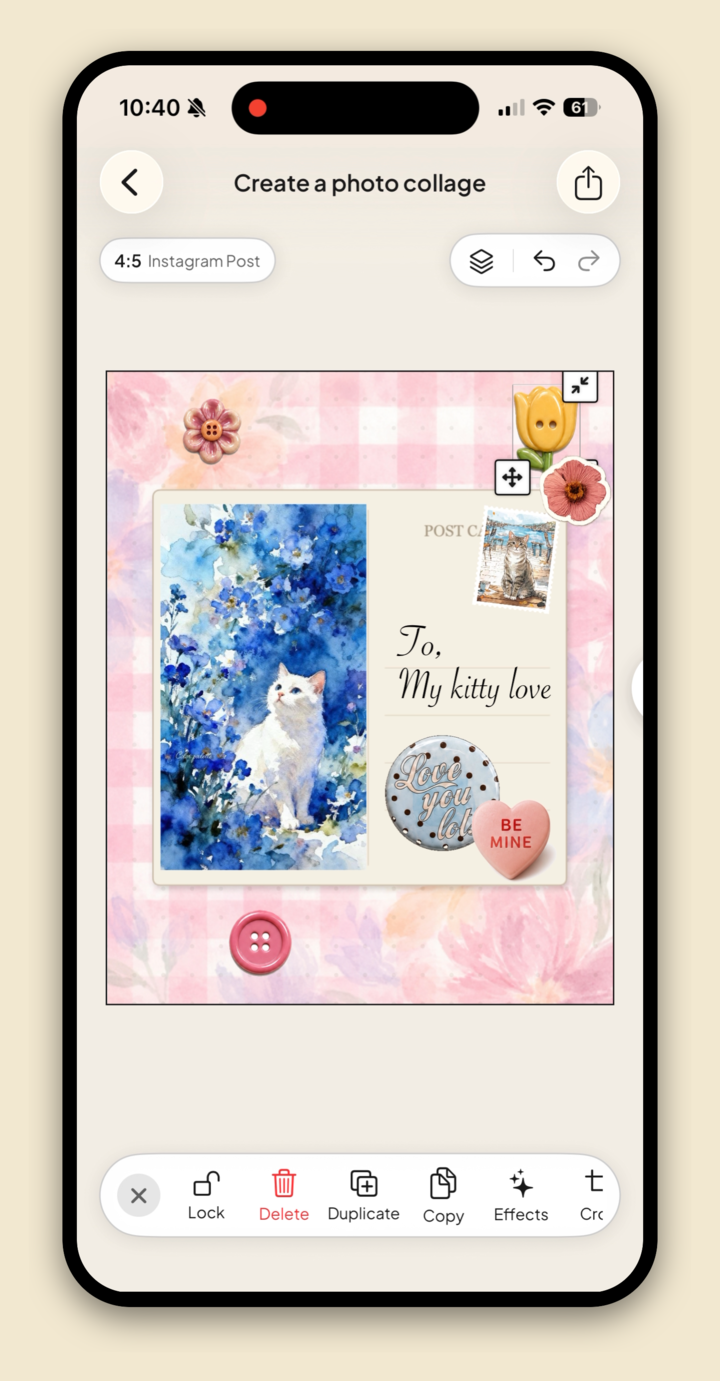
<div class="step"><div class="step-num">6</div><div class="step-text"><p><strong>Polish a piece.</strong> Tap any photo or sticker to select it, and a toolbar appears with <strong>Effects</strong>, <strong>Crop</strong>, and <strong>Cut</strong>. Effects add a clean look in one tap: a <em>Color Border</em>, <em>Torn Paper</em> edge, <em>Drop Shadow</em>, or a postage-<em>Stamp</em> border like the one here. <strong>Cut</strong> lets you lasso out part of a shot, and <strong>Remove BG</strong> lifts a subject clean off its background.</p></div><figure class="step-media"><img src="/assets/blog/collage-6-effects.png" alt="A photo with a postage-stamp border effect applied in Jodu, with stamp style options Fine, Classic and Bold below."></figure></div>

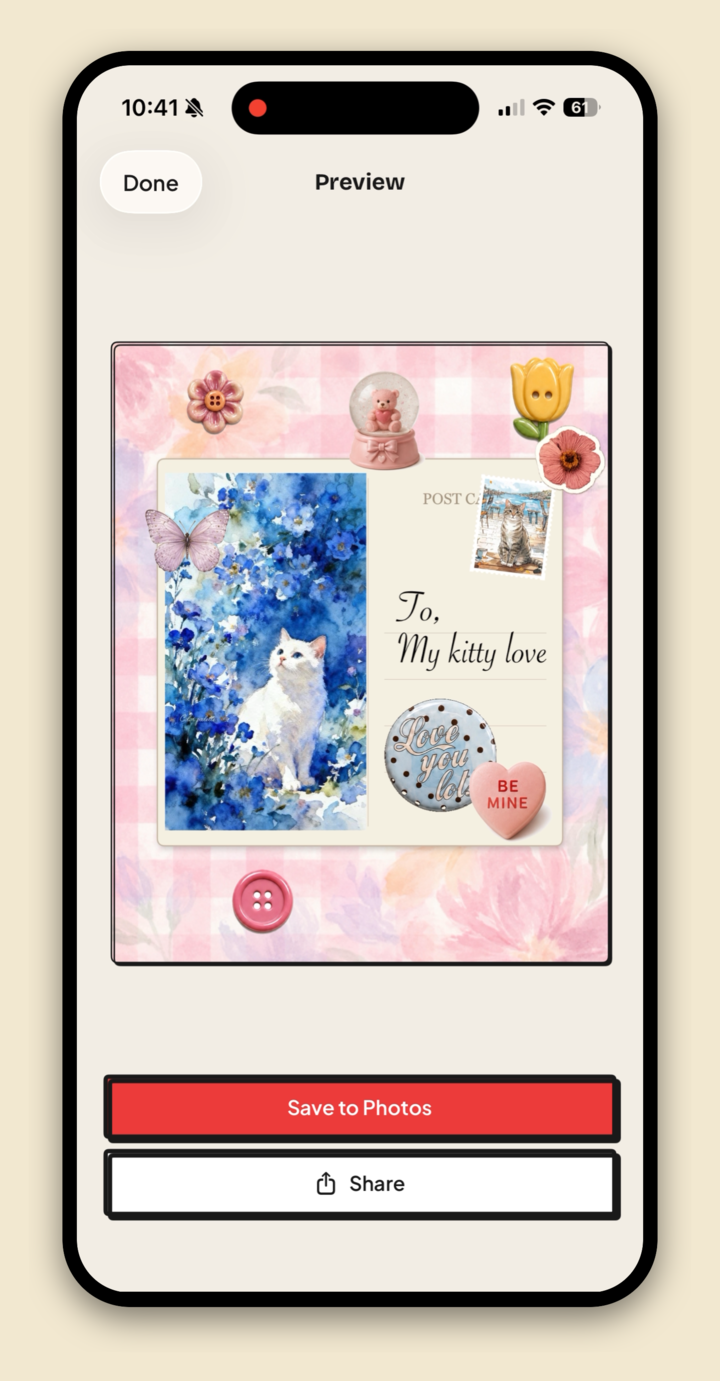
<div class="step"><div class="step-num">7</div><div class="step-text"><p><strong>Save it.</strong> Tap the share button at the top right and pick <strong>Image</strong>. Jodu renders the collage at full resolution, shows you a preview, and <strong>Save to Photos</strong> drops it straight into your camera roll. <strong>Share</strong> sends it on to Instagram, Messages, or AirDrop.</p></div><figure class="step-media"><img src="/assets/blog/collage-7-save.png" alt="Jodu's export preview of the finished cat postcard collage with Save to Photos and Share buttons."></figure></div>

</div>

That's a finished collage, start to post, without leaving your phone.

<div class="cta-inline"><span class="lead">Try it yourself</span><a class="btn-download" href="https://apps.apple.com/app/jodu-app/id6759936736" target="_blank" rel="noopener"><svg viewBox="0 0 24 24" aria-hidden="true"><path d="M17.05 12.04c-.03-2.8 2.28-4.15 2.38-4.21-1.3-1.9-3.32-2.16-4.04-2.19-1.72-.17-3.36 1.01-4.23 1.01-.88 0-2.22-.99-3.65-.96-1.88.03-3.61 1.09-4.58 2.77-1.95 3.38-.5 8.39 1.4 11.15.93 1.35 2.04 2.86 3.49 2.81 1.4-.06 1.93-.91 3.63-.91 1.69 0 2.17.91 3.66.88 1.51-.03 2.47-1.38 3.39-2.74 1.07-1.57 1.51-3.09 1.53-3.17-.03-.01-2.94-1.13-2.98-4.44zM14.5 4.07c.76-.93 1.28-2.21 1.14-3.49-1.1.05-2.45.74-3.24 1.66-.71.81-1.33 2.12-1.16 3.37 1.23.1 2.49-.62 3.26-1.54z"/></svg> Download Jodu free</a></div>

## A few things that make a collage look good

The app does the heavy lifting, but a couple of small habits make the difference between "phone collage" and "someone made this":

- **Pick a background that ties the photos together.** Warm photos sit beautifully on a cream or kraft paper. Cool, moody photos like a charcoal or a soft gradient. Let the background pull the set into one mood.
- **Use a frame for the hero shot.** Dropping your main photo into a Polaroid or postcard frame instantly gives it weight and makes the page feel composed instead of pasted.
- **Vary the sizes.** One photo bigger than the rest gives the eye a place to land. A clear "hero" shot almost always looks more intentional than everything at one size.
- **Leave some breathing room.** You don't have to cram every corner. A little background showing through keeps the whole thing calm and easy to read.
- **Use cut-outs for depth.** Lift one subject off its background and let it cross over a frame edge. That single trick is what makes a flat collage suddenly have layers.

## Where to go next

Want the version that scrolls like one long picture across an Instagram post? That's a [seamless carousel](/blog/seamless-instagram-carousel/), and there's a [panorama how-to](/blog/panorama-instagram-carousel/) for the storytelling side. If you're leaning into cut-outs, here's how to [remove a photo background on iPhone](/blog/remove-photo-background-iphone/) in one tap, on-device. For the wider picture, see our guide to the [best aesthetic collage apps for iPhone](/blog/best-aesthetic-collage-apps/).

## FAQ

### How do I make a photo collage on my iPhone for free?
Open a free collage app like Jodu, start a collage, and set a background, then add a frame, your photo, and a line of text. Tap the share button and choose Image, then Save to Photos to drop the full-resolution collage into your camera roll. Nothing uploads.

### Does iPhone have a built-in collage maker?
Not really. The Photos app can make a basic grid in a shared album or via a Shortcut, but it has no backgrounds, frames, stickers, text, or free-form arranging. A dedicated app gives you real layout control and a much better-looking result.

### How many photos can I put in one collage?
As many as you like on the free-form canvas. You can also use the ready-made grid layouts, which run from two photos up to six or more per panel set, and keep adding photos and stickers on top.

### What size should my collage be?
Square (1:1) works everywhere. Portrait (4:5) fills more of the Instagram feed, and Story (9:16) is the tall shape for Stories and Reels covers. Tap the size chip or the Ratio button to switch at any point while you work.

<script type="application/ld+json">
{"@context":"https://schema.org","@graph":[
{"@type":"HowTo","name":"How to make a photo collage on iPhone","description":"Make a photo collage on your iPhone for free using Jodu: pick a canvas shape, set a background, add a frame and photo, add text, then save at full resolution.","tool":{"@type":"HowToTool","name":"Jodu"},"step":[
{"@type":"HowToStep","position":1,"name":"Start a collage and pick the shape","text":"Open Jodu, start a collage, and tap the size chip or the Ratio button to choose Square (1:1), Portrait (4:5) or Story (9:16)."},
{"@type":"HowToStep","position":2,"name":"Set a background","text":"Tap BG and choose a color, gradient or paper texture like Scrapbook, Linen or Kraft."},
{"@type":"HowToStep","position":3,"name":"Add a frame","text":"Tap Sticker and open the Frames tab to add a Polaroid, postcard or other frame, plus hearts, washi tape and letters."},
{"@type":"HowToStep","position":4,"name":"Drop in your photo","text":"Tap Tap to add a photo on the canvas, pick a shot from your library, then pinch, drag and rotate it to fit the frame."},
{"@type":"HowToStep","position":5,"name":"Add text","text":"Tap Text and type a caption, date or note in any of the built-in fonts, including a handwritten script."},
{"@type":"HowToStep","position":6,"name":"Polish a piece","text":"Select a photo or sticker and use Effects for a border, torn-paper edge or stamp, Crop to reframe, or Remove BG to lift the subject out."},
{"@type":"HowToStep","position":7,"name":"Save it","text":"Tap the share button, choose Image, and tap Save to Photos to save the full-resolution collage to your camera roll."}
]},
{"@type":"FAQPage","mainEntity":[
{"@type":"Question","name":"How do I make a photo collage on my iPhone for free?","acceptedAnswer":{"@type":"Answer","text":"Open a free collage app like Jodu, start a collage and set a background, then add a frame, your photo and a line of text. Tap the share button and choose Image, then Save to Photos to drop the full-resolution collage into your camera roll. Nothing uploads."}},
{"@type":"Question","name":"Does iPhone have a built-in collage maker?","acceptedAnswer":{"@type":"Answer","text":"Not really. The Photos app can make a basic grid in a shared album or via a Shortcut, but it has no backgrounds, frames, stickers, text or free-form arranging. A dedicated app gives you real layout control and a better-looking result."}},
{"@type":"Question","name":"How many photos can I put in one collage?","acceptedAnswer":{"@type":"Answer","text":"As many as you like on the free-form canvas. You can also use the ready-made grid layouts, which run from two photos up to six or more per panel set, and keep adding photos and stickers on top."}},
{"@type":"Question","name":"What size should my collage be?","acceptedAnswer":{"@type":"Answer","text":"Square (1:1) works everywhere. Portrait (4:5) fills more of the Instagram feed, and Story (9:16) is the tall shape for Stories and Reels covers. Tap the size chip or the Ratio button to switch at any point while you work."}}
]}
]}
</script>

---

Source: https://jodu.app/blog/photo-collage-iphone/

A free iPhone collage app with paper textures, frames, stickers, one-tap cutouts, and full-resolution export.