A collage is one of those things that looks like it needs a real design app, and then you realize your phone does it better. You pick a few photos, drop them on a canvas, dress them up with a frame and a bit of handwriting, and you've got something worth posting. Here's how to make a good one on your iPhone, free, with nothing uploaded to a server.
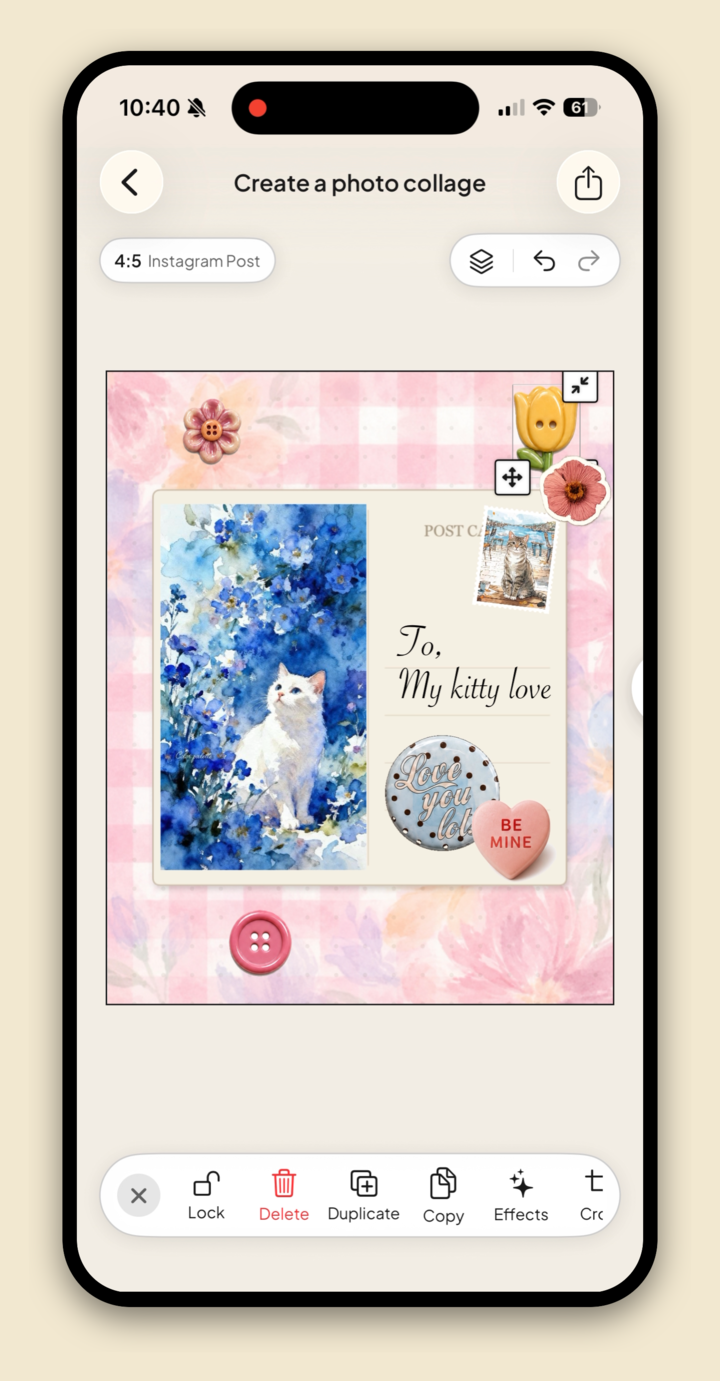
TL;DR — Open Jodu and start a collage. Tap the size chip (or Ratio) to pick a shape, tap BG for a background, add a frame and stickers from Sticker, drop in your photo, add a line of Text, then save it straight to your camera roll with Save to Photos. Nothing uploads.
What you'll need
Nothing except your photos and an iPhone. The whole thing runs on-device, so there's no upload and no account. A few photos that go together is all you need to start.
We'll use Jodu, a free collage app, because it does both kinds of collage in one place: the tidy grid kind and the loose, layered, scrapbook kind. Most apps make you pick one.
The two kinds of photo collage
Before the steps, it helps to know which look you're after, because they're built a little differently:
- A grid collage is the clean one. Equal panels, photos tucked into slots, everything lined up. Great for a recap or a tidy set of four. In Jodu you get these from the Layout button.
- A free-form collage is the loose one. A photo in a frame, sitting on a paper background, with stickers and handwriting layered around it. This is the mood-board, scrapbook, junk-journal look, and it's the one we'll build below.
You can mix the two freely. Here's the whole flow, start to saved.
How to make a collage on your iPhone
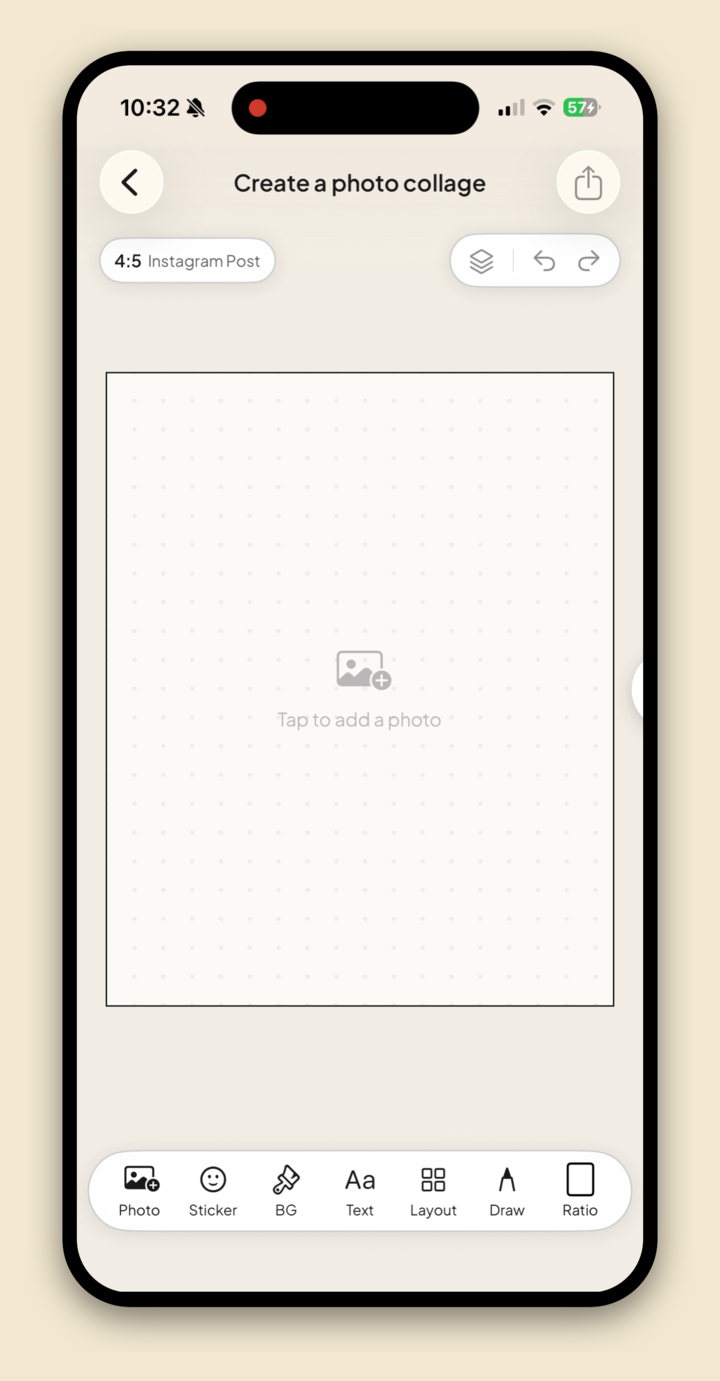
Start a collage and pick the shape. Open Jodu and start a new collage. You get a blank canvas with the toolbar along the bottom. Tap the size chip at the top left, or Ratio in the toolbar, to choose a shape: Square (1:1), Portrait (4:5) for the Instagram feed, or Story (9:16). You can change it any time.
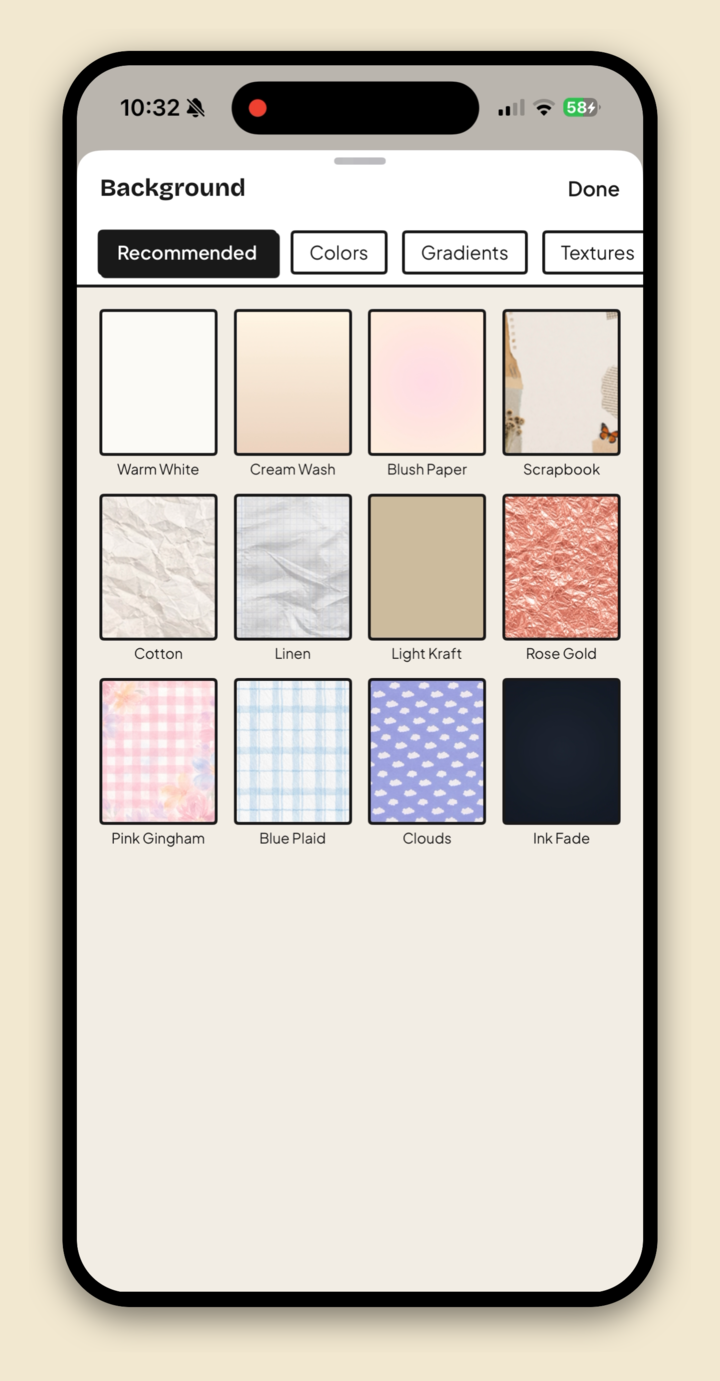
Set a background. Tap BG. This is the part that makes a collage look designed instead of dropped. There are clean Colors, soft Gradients, and paper Textures like Scrapbook, Linen, Kraft, and Cotton, plus patterns like gingham and plaid. Pick one and tap Done.
Add a frame. Tap Sticker and open the Frames tab for a Polaroid, postcard, phone, or classic-Mac frame to drop your photo into. The same panel has hearts, washi tape, letters, and more, so this is where the page starts to feel like a real scrapbook.
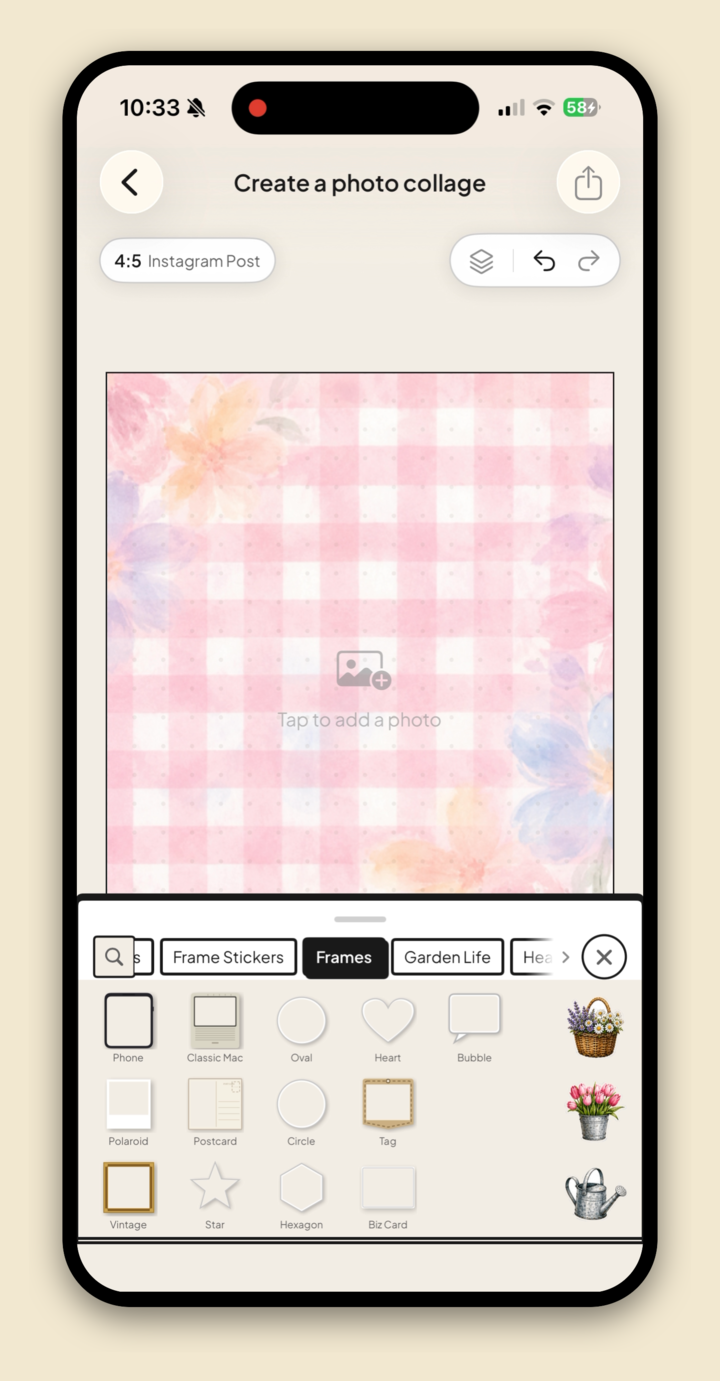
Drop in your photo. Tap Tap to add a photo on the canvas (or the Photo button) and pick a shot from your library. It lands inside the frame, and you can pinch to resize, drag to reposition, and twist with two fingers to angle it just so.
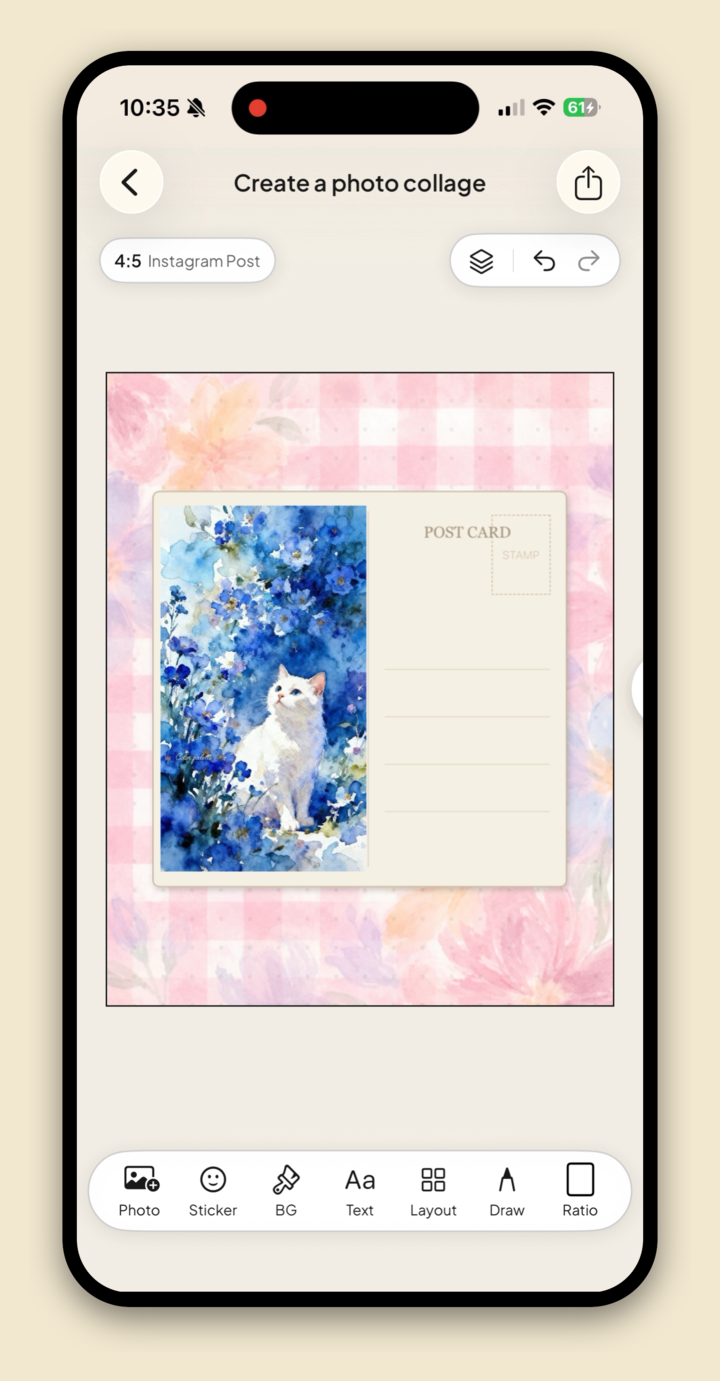
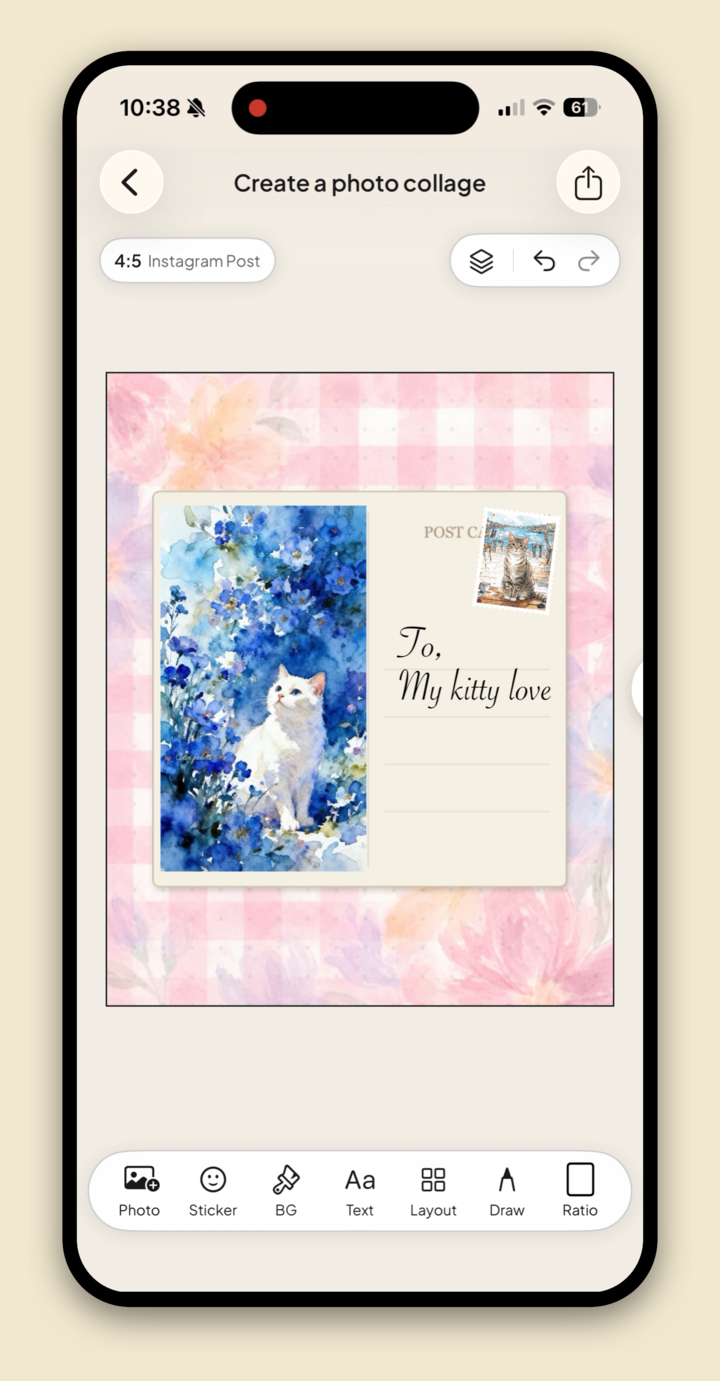
Add a few words. Tap Text and type a caption, a date, or a little note. The fonts run from clean sans-serifs to a handwritten script, so a single line like a postcard greeting reads like real handwriting on the page.
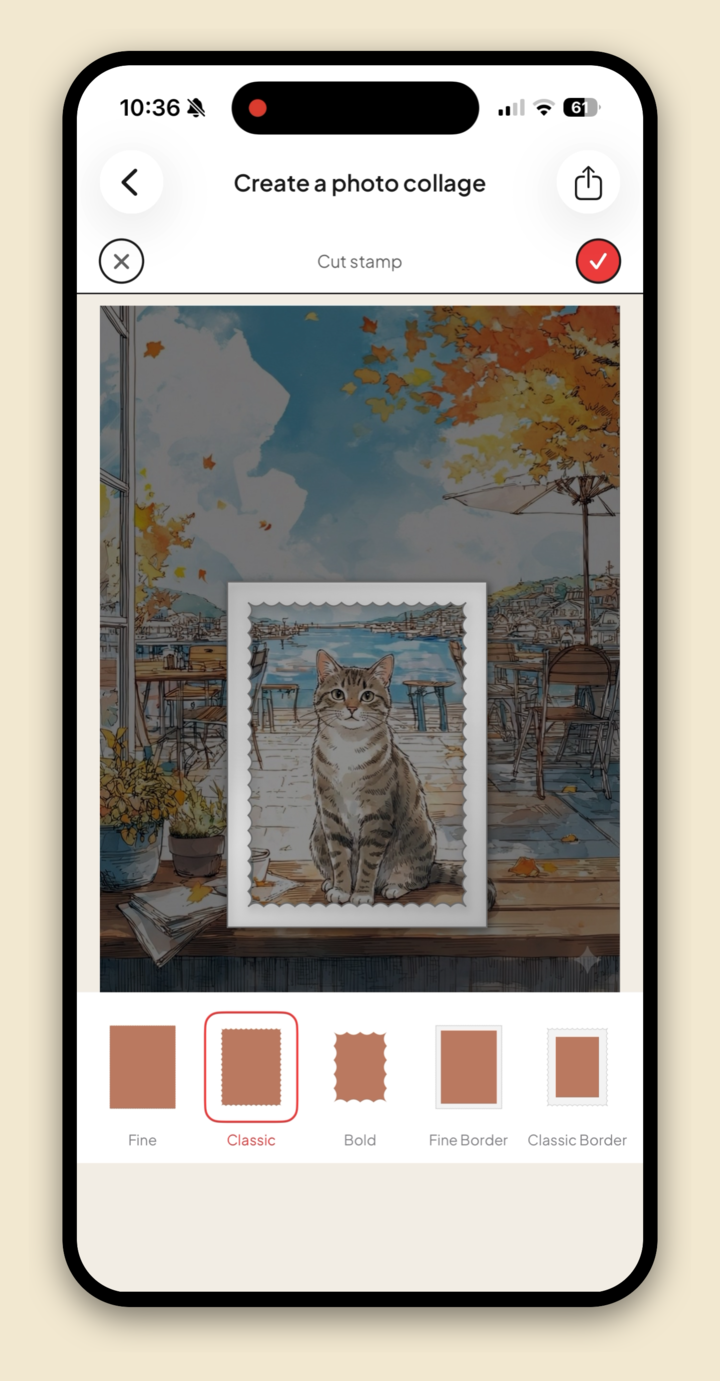
Polish a piece. Tap any photo or sticker to select it, and a toolbar appears with Effects, Crop, and Cut. Effects add a clean look in one tap: a Color Border, Torn Paper edge, Drop Shadow, or a postage-Stamp border like the one here. Cut lets you lasso out part of a shot, and Remove BG lifts a subject clean off its background.
Save it. Tap the share button at the top right and pick Image. Jodu renders the collage at full resolution, shows you a preview, and Save to Photos drops it straight into your camera roll. Share sends it on to Instagram, Messages, or AirDrop.
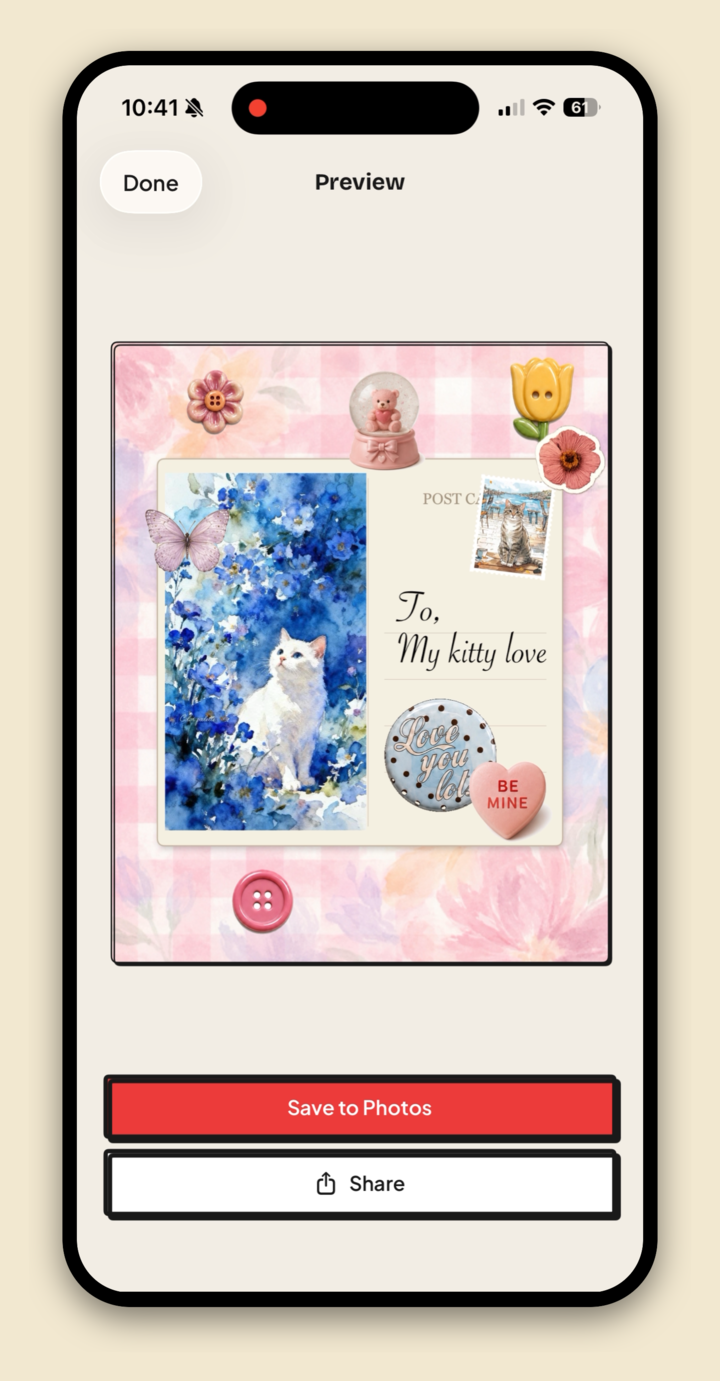
That's a finished collage, start to post, without leaving your phone.
A few things that make a collage look good
The app does the heavy lifting, but a couple of small habits make the difference between "phone collage" and "someone made this":
- Pick a background that ties the photos together. Warm photos sit beautifully on a cream or kraft paper. Cool, moody photos like a charcoal or a soft gradient. Let the background pull the set into one mood.
- Use a frame for the hero shot. Dropping your main photo into a Polaroid or postcard frame instantly gives it weight and makes the page feel composed instead of pasted.
- Vary the sizes. One photo bigger than the rest gives the eye a place to land. A clear "hero" shot almost always looks more intentional than everything at one size.
- Leave some breathing room. You don't have to cram every corner. A little background showing through keeps the whole thing calm and easy to read.
- Use cut-outs for depth. Lift one subject off its background and let it cross over a frame edge. That single trick is what makes a flat collage suddenly have layers.
Where to go next
Want the version that scrolls like one long picture across an Instagram post? That's a seamless carousel, and there's a panorama how-to for the storytelling side. If you're leaning into cut-outs, here's how to remove a photo background on iPhone in one tap, on-device. For the wider picture, see our guide to the best aesthetic collage apps for iPhone.
FAQ
How do I make a photo collage on my iPhone for free?
Open a free collage app like Jodu, start a collage, and set a background, then add a frame, your photo, and a line of text. Tap the share button and choose Image, then Save to Photos to drop the full-resolution collage into your camera roll. Nothing uploads.
Does iPhone have a built-in collage maker?
Not really. The Photos app can make a basic grid in a shared album or via a Shortcut, but it has no backgrounds, frames, stickers, text, or free-form arranging. A dedicated app gives you real layout control and a much better-looking result.
How many photos can I put in one collage?
As many as you like on the free-form canvas. You can also use the ready-made grid layouts, which run from two photos up to six or more per panel set, and keep adding photos and stickers on top.
What size should my collage be?
Square (1:1) works everywhere. Portrait (4:5) fills more of the Instagram feed, and Story (9:16) is the tall shape for Stories and Reels covers. Tap the size chip or the Ratio button to switch at any point while you work.